
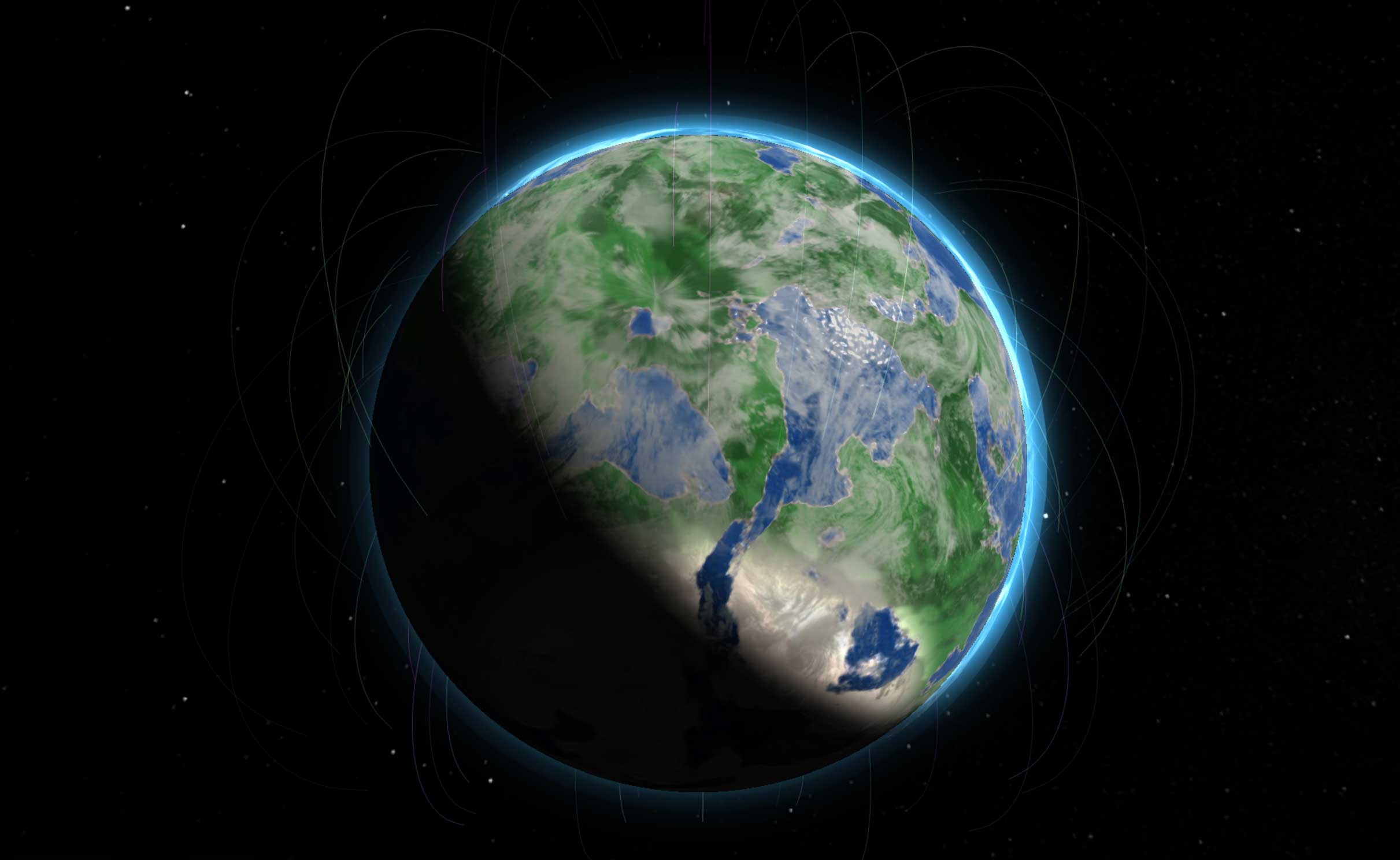
How to use TerraForge
This is a guide for your first visit. It explains what you can build, what every button does, and what happens to a planet once you save it. You do not need to know anything about space or 3D software to follow it. Read it end to end, or use the contents to jump to the part you need.
What this is
TerraForge is a planet builder. You choose the raw ingredients — the chemical elements a world is made of — then pick a star for it to orbit, set how far away it sits, and add moons. Press build, and you watch the planet form out of a cloud of gas and dust.
What you get at the end is not decided by you. It is decided by the physics: your ingredients and your orbit are run through a simulation, and the simulation tells you what they made. Put a lot of iron and rock close to a warm star and you may get something Earth-like. Pile on hydrogen and you get a gas giant. Freeze it out at the edge of the system and you get an ice world.
Every world you save gets its own page and its own link, which you can send to anyone.
Building your first planet
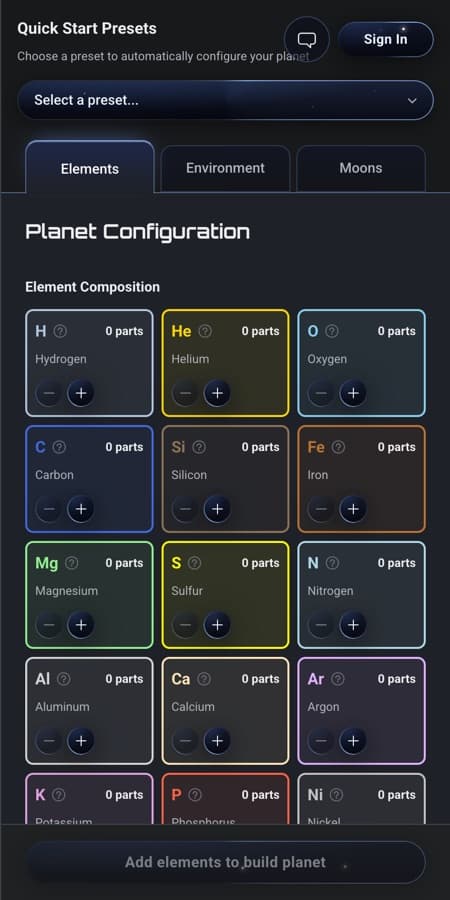
Everything happens in the builder. If you would rather not start from nothing, open the Quick Start Presetsdropdown at the top — it reads “Select a preset...” — and choose something like Earth-like, Mars-like or Gas Giant. That fills in every setting for you, and you can change any of them afterwards.
Otherwise you work through three tabs.
Elements
There are 20 elements to choose from: hydrogen, helium, oxygen, carbon, silicon, iron, magnesium, sulfur, nitrogen, aluminium, calcium, argon, potassium, phosphorus, nickel, sodium, chlorine, titanium, chromium and uranium. You add them as “parts” using the plus and minus buttons — parts are just proportions, so four parts iron to one part oxygen means four times as much iron. Next to each element is an About button that explains what that element is and what it tends to do to a planet.
This mixture is the single biggest decision you make. It is what turns your world into rock, ice, water or gas.
Environment
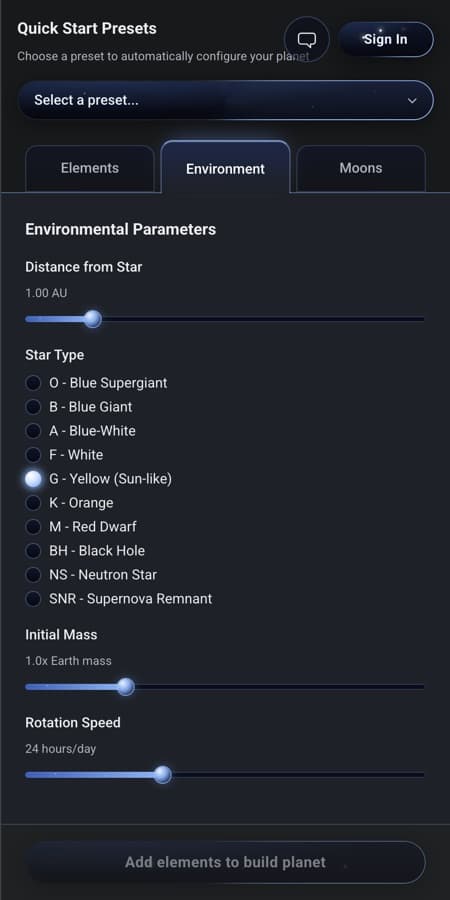
- Distance from Star, measured in AU. One AU is the distance from the Earth to the Sun. Closer means hotter.
- Star Type. Ten to pick from: the hot, short-lived O, B, A and F stars; G, which is Sun-like; the cooler K; M, a red dwarf; and three stellar remnants — a black hole, a neutron star and a supernova remnant.
- Initial Mass, in Earth masses, from 0.1 up to about 9,534 — that is 30 times the mass of Jupiter. There is a limit to how big a planet can be: push a hydrogen world past roughly 13 Jupiter masses and it stops being a planet at all. It ignites and becomes a brown dwarf.
- Rotation Speed, the length of one day, anywhere from 1 hour to 2,000 hours.
Moons
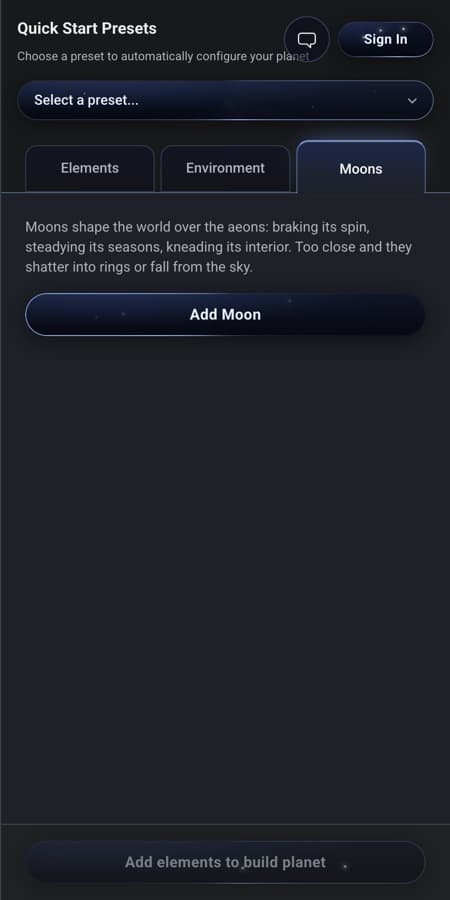
You can add up to 24. Each moon has a mass and an orbital distance measured in planet radii — so a distance of 5 means five times the planet's own radius out from the centre. The distance matters: bring a moon in too close and the planet's gravity tears it apart into a ring, and put it too far out and it escapes altogether.
Building it
Press Build Planet, or Ctrl+B. Formation takes about six seconds. You see the gas cloud collapse, material clump together, and a flash as the world is born, while a timeline counts forward from five billion years ago to Present Day. Ctrl+R starts over from a blank slate.
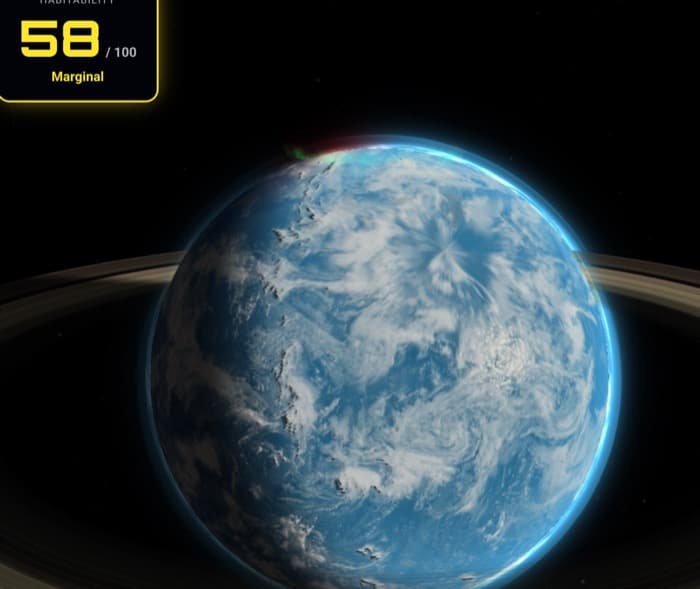
Once it has formed, the panel on the right tells you what you made: Physical Properties, Orbital Environment, Atmosphere, Elemental Composition, Surface Characteristics and Habitability. The build button becomes Edit Planet, so you can go back, change one number, and build again to see what it does.
Back to contentsThe buttons on the scene
A small row of icons sits on the 3D view. Hovering over any of them shows its name. Some only appear when they apply to your planet.
- View planet
- Shows the world itself, with its moons and any rings.
- View star system
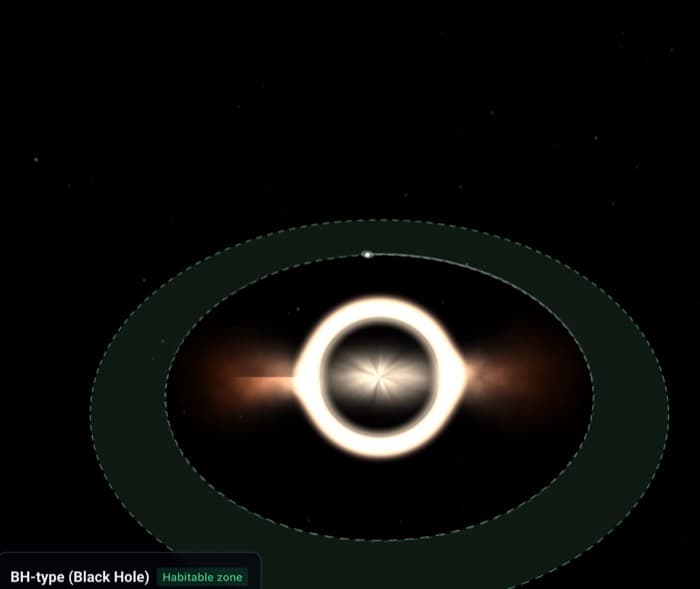
- Looks down on the orbits from above, so you can see where your planet sits relative to the star's habitable zone — the band where liquid water can exist.
- View surface
- Puts you on the ground. It only appears once the planet has been built.
- Show / Hide magnetic field
- Draws the field lines around the planet. It only appears on planets that have a magnetic field. When the field is hidden, the magnet is dimmed and struck through.
- Snapshot
- Downloads a poster image of the scene with the planet's name, type, star and habitability printed on it.
- Expand to full-screen view
- Fills the screen with the scene, and puts it back again.
Standing on your planet
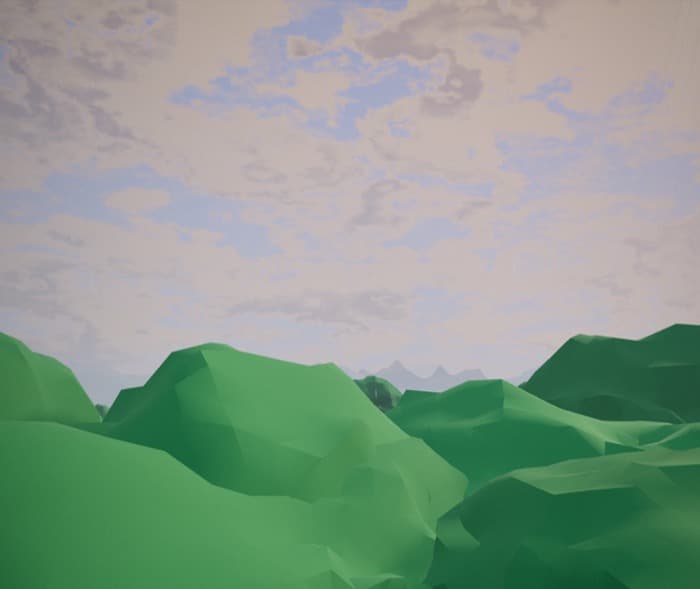
View surface drops you onto the ground. What you find there is read from the same numbers that shaped the globe, so it is your planet, not a stock backdrop.
Depending on what you built, you get bare rock, sand dunes, ice, lava, salt flats, or the cracked plates of a Venus-like world. On a world where the simulation detects life, there is grass and there are trees. On a water world you look out over open ocean. On a gas giant there is no ground at all — there is nothing solid to stand on, so you float among the cloud tops.
The colour of the sky comes from the star you chose. There is weather, there is wind, and there are mountains. And if one of your moons strayed close enough to be torn apart, you will see its debris arcing overhead as a ring. The surface view has its own snapshot button, so you can take a picture from down there too.
Saving, sharing, and why an account helps
You can build, save and share a planet without signing in. Name it, save it, and you get a link straight away that anyone can open.
There is one thing worth knowing before you do. A planet saved without an account is always public, and it belongs to nobody — not even you. That means it can never be edited, renamed, deleted or made private later. If you think you might want to change it, make an account first.
An account is free, and it adds:
- My Planets
- Your own library of everything you have saved.
- Editing
- Change a world after you have saved it, including its name.
- Private planets
- Keep a world off Explore and share it only with the people you send the link to.
- Star systems
- Group your planets around a shared star.
- Likes
- Give a heart to other people's worlds.
Signing in is an email address and a one-time 6-digit code that is sent to it. There is no password to invent and none is ever stored. You need to be 13 or older to make an account. If you are under 13 you can still build planets, save them and share them — you just do it without an account.
Your saved worlds live at My Planets.
Back to contentsStar systems
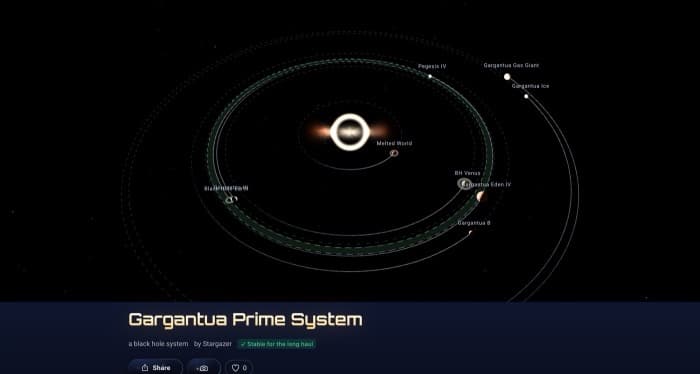
A star system is a named group of your own planets that all orbit the same kind of star. You make one from My systems → New star system, or straight after saving a planet, using “Add to a star system”. You can have up to 10 systems, with up to 20 planets in each.
Two rules govern what fits. First, every planet you add must have been built for that system's star type — a world designed around a red dwarf cannot be dropped into a Sun-like system. Second, the spacing has to work. Real orbital physics checks each new planet against the ones already there. Orbits that would actually cross are refused outright. Orbits that merely sit close enough to go unstable over millions of years give you a warning, and then let you place the planet anyway if that is what you want.
The system's page shows the whole thing as an orrery — a top-down view of the orbits — and tells you whether the arrangement is stable for the long haul. Other people's public systems are at Systems.
Finding your way around
- Explore — every public world on the site. Filter by planet type, by star, or by a minimum habitability, and sort by newest, oldest, top habitability or most liked.
- Planet types — what each kind of planet actually is, with a page for each one. A good place to look if a term in the builder is unfamiliar.
- Systems — public star systems other people have assembled.
- News — real exoplanet headlines, each linking out to the original publication.
- The homepage — shows the Planet of the Week, plus recent worlds from the community.
- The heart on a planet is a like. You need an account to use it.

Keyboard shortcuts
Two, both in the builder. Ctrl+B builds the planet. Ctrl+R starts over.